 6808
6808
How to Set Master Password in Odoo 16?

 5 min read
Odoo ERP has turned into one of the most promising ERP systems we have today. In fact, it has one of the easiest interfaces and can be seamlessly used even with limited technical expertise.
The ease of use and high customization capabilities makes Odoo an interesting choice for small and medium-scale businesses that need to evolve with time. Understandably, the ERP system protects its applications and processes with a password to avoid unauthorized access.
That explains the use of a Master password in Odoo. But, what exactly is the master password? Is it the same as the Admin password? Or anything else?
How do we set the Master password? And why? Should you reach out to an Odoo development company or can perform the task yourself?
I will help you unravel these answers with the help of this blog!
Odoo Master Password is required when you are attempting to do anything with the database. Whether you are creating a new database, accessing an existing one, modifying a database, or restoring a database, you will have to provide this password to start the task.
If you are accessing a database for the first time, the Odoo interface will throw a warning asking you to set a master password to secure it. In the next window, you can either choose a password of your own and enter it or pick the default password shown there.
P.S.: Make a note of the password as you will need to enter the Master password every time you are trying to access the database.
If you think about how Odoo ERP works, you have 3 entities to think of:
Basically, you need three passwords to be able to work with Odoo seamlessly.
Here, the master password I am talking about is the password needed by administrators to access all the databases. This password is not shared with individual database administrators.
Now, let’s check how you can set it!
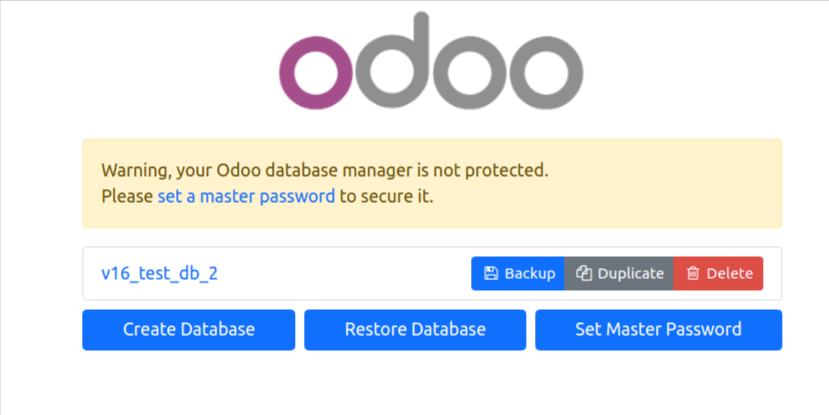
Master password is used to create a new database, backup database, or restore a new database. If the User has not set the master password yet, then the Odoo interface will show a warning as below.
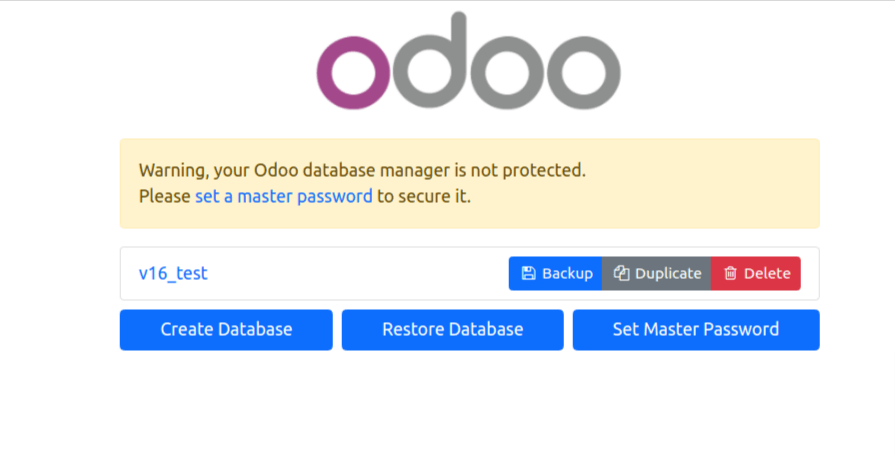 After clicking on the “set master password” link, you will see a popup from where you can set the new master password as shown in the image below.
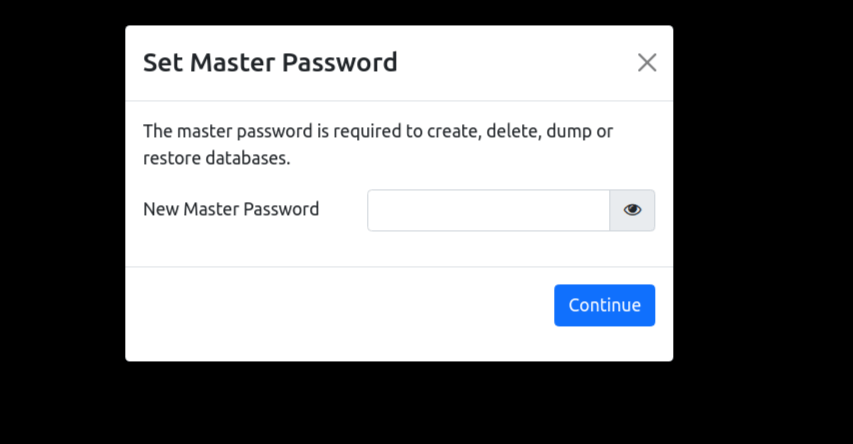 If the user has not set a master password, then Odoo will generate a master password by itself which users can see while creating a backup of the database.
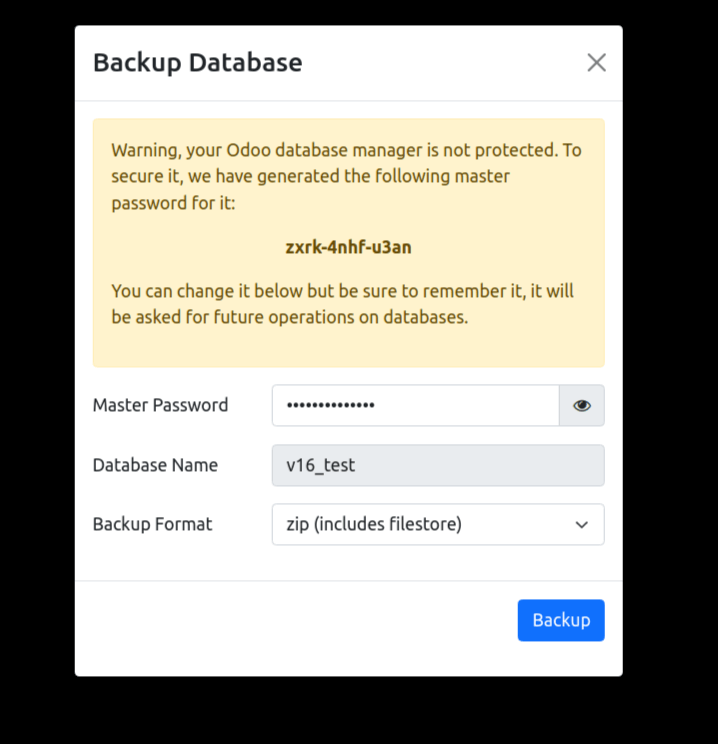 If you have set a master password, then you can add the master password and backup the zip file of the database as shown in the above image.
Users can also add the master password from the Odoo addons.
For that, path of the file is: odoo/service/db.py
In that file function check_super:
User can set the master password in this function as below.
 Here, we have set the master password as “admin”.
So while performing any functionality regarding the database, we have to use “admin” as a master password as the below image shows.
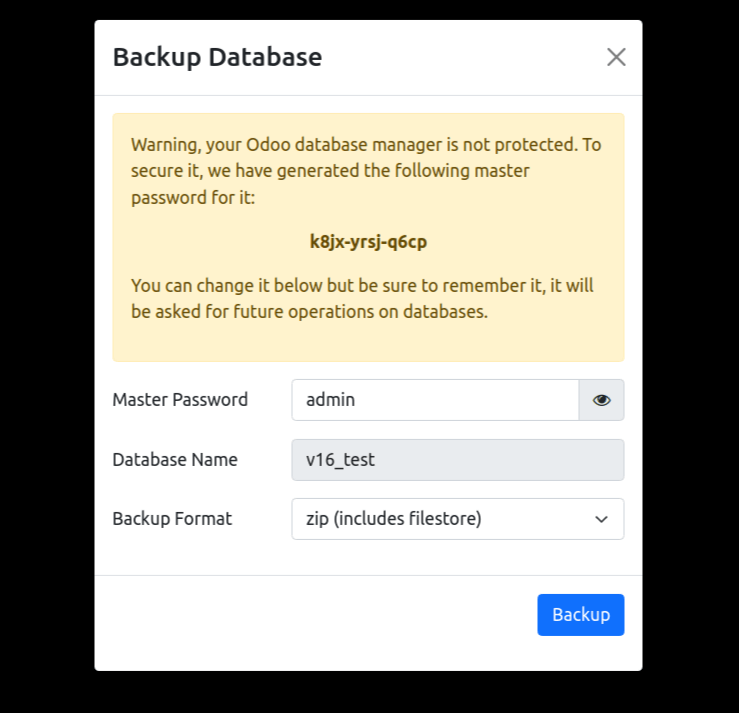 After that, we will be able to create a database backup and restore the database backup successfully.
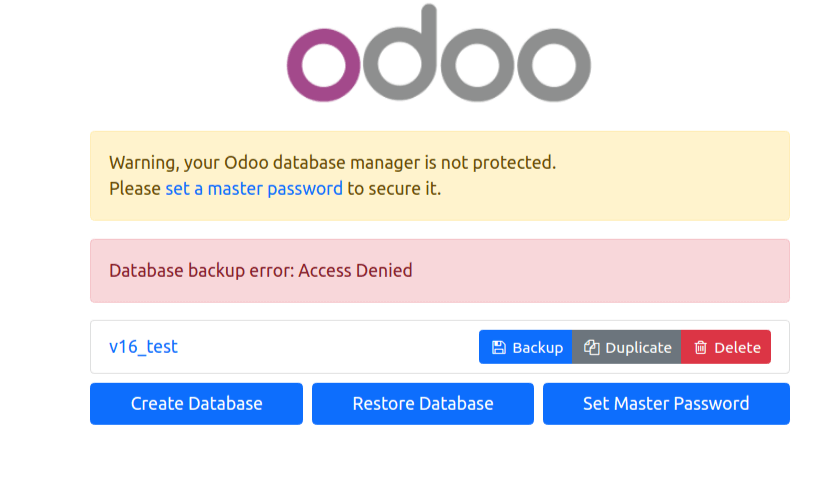
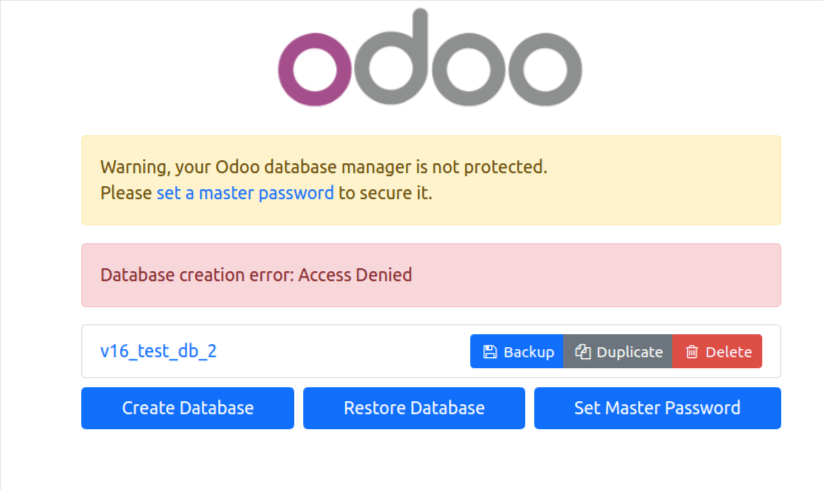
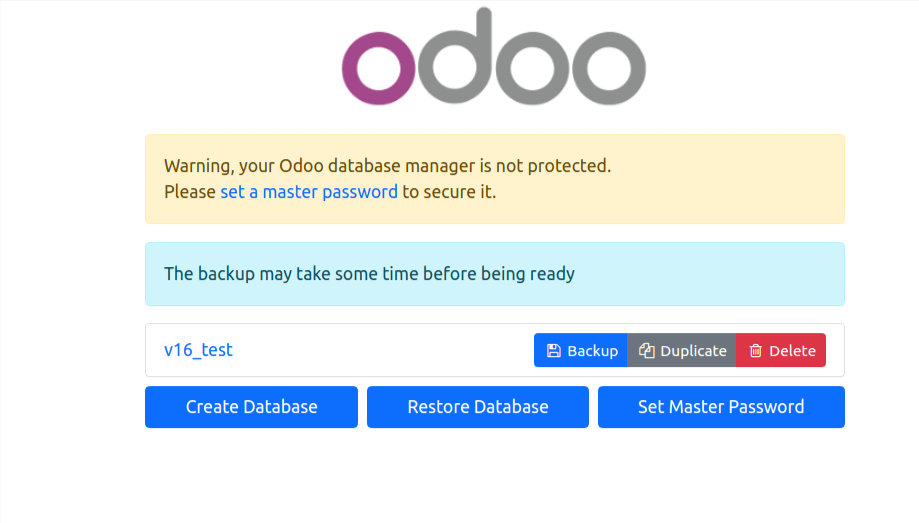 If we use another password, then you will see an access denied error message on the screen.
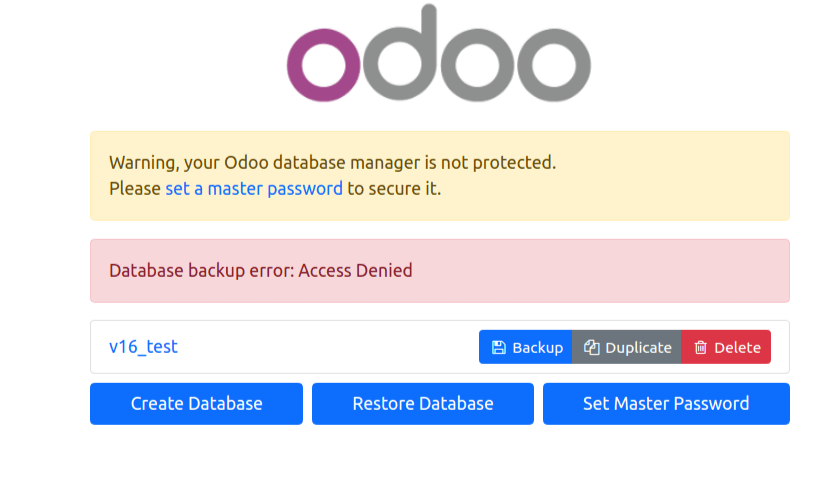 If the user adds the wrong password, then access will be denied.
 After entering the right password, the database will be restored.
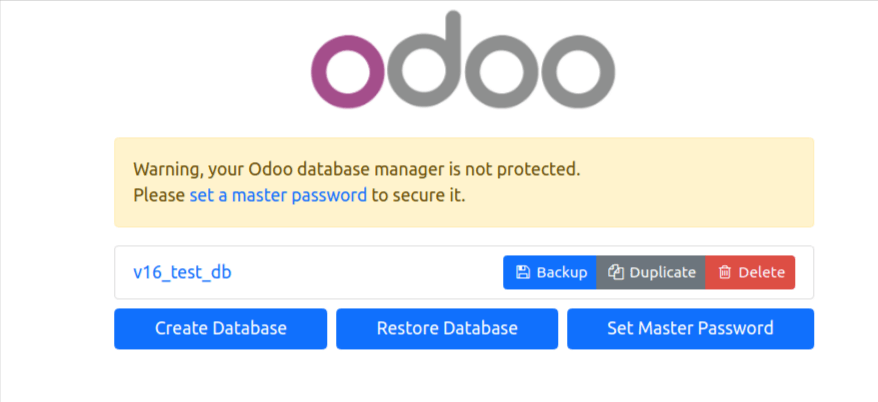
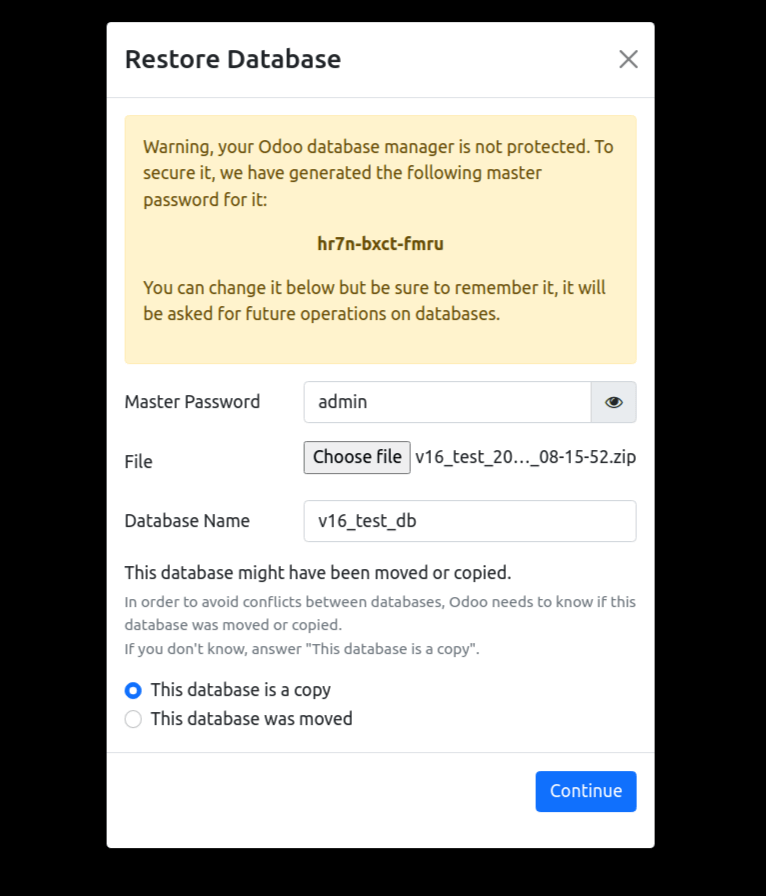 You can use the new database name to start the server.
After that, you will be able to see the new database name here.
 Users can create a new database also.
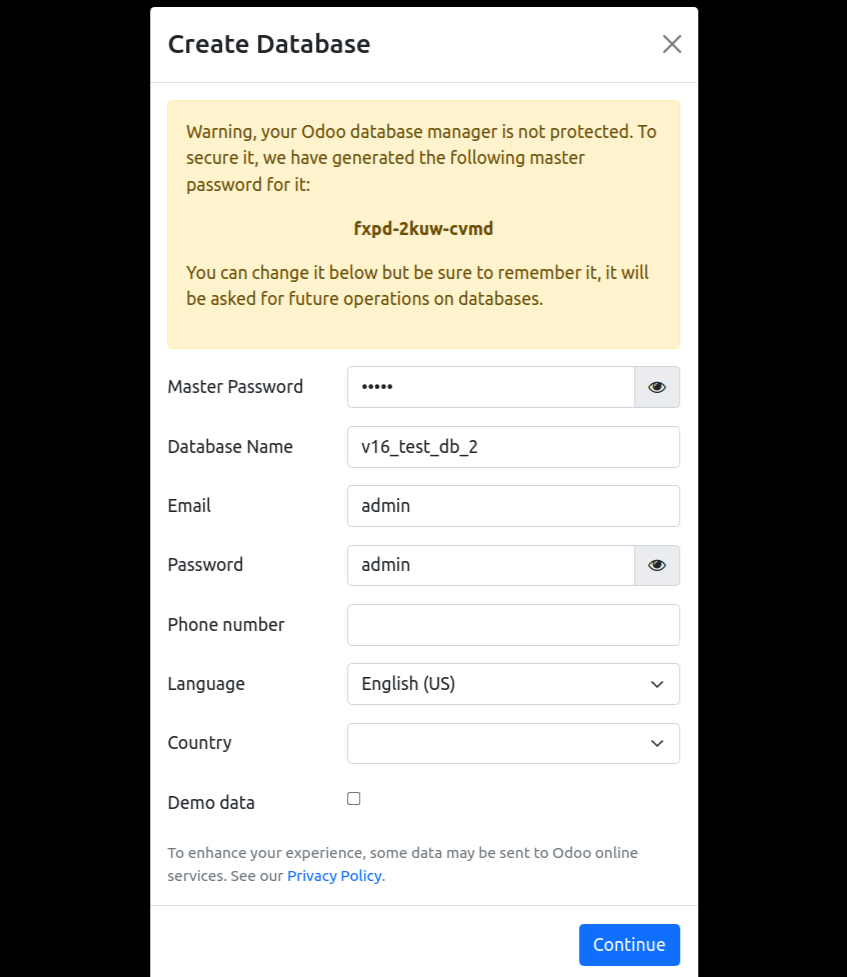 After restarting the server with the new database name, you will be able to see the new database name here.
 If you add the wrong master password, then an error will be displayed.
Setting up a Master password in Odoo is required so Administrators can access all the databases using a single password. With this blog post, you will be able to differentiate the Master Password from the Admin Password and learn the steps to set up Master Password in Odoo 16.
Concerned about the security of your Odoo ERP? You can talk to our Odoo developers and learn more about best security practices. Even get support for efficient ERP development as you hire dedicated Odoo developers from BiztechCS.